
WSL: How to install Linux inside Windows (the best of both worlds)

Many people who start learning about data come from very diverse professional backgrounds. Some are trained in statistics and mathematics, others are programmers looking to specialize in the latest AI development trend, and then there are specialists from fields completely outside computer science who bring their own perspective to this multidisciplinary field.
For this last group (people who in many cases grew up using home PCs and consider Windows the only option), it can be surprising to start working side by side with developers and engineers who can’t stop talking about the virtues of Linux. But what is Linux? What can it do for us? And how can we take advantage of what it offers? That’s what this post is all about.
Why Linux?
Linux is, like Windows or macOS, an operating system. In computing, an operating system (OS) is essential software that acts as a vital intermediary between a computer’s hardware and the user. It manages resources, facilitates program execution, and provides a stable environment for applications to run. An OS consists of several fundamental components:
- Kernel: The core of the operating system that manages hardware and enables interaction between software and computer hardware.
- Process Manager: Controls program execution by allocating resources and managing tasks to ensure efficient processor usage.
- Memory Manager: Administers memory space for programs and data, handling allocation and deallocation as needed.
- File System: Organizes and manages information stored on storage devices, enabling file access and manipulation.
- Device Drivers: Modules that facilitate communication between the operating system and different hardware devices, such as printers, network cards, and storage drives.
- User Interface: Provides the way users interact with the operating system, which can be through a graphical interface (GUI) or a command-line interface (CLI).
Regardless of which operating system you use, all of these components are common across them.
But Linux has some unique characteristics that other operating systems don’t. First, it’s open-source, meaning all its code is available and can be modified. As a result, there are a huge number of distributions (Ubuntu, Fedora Linux, Debian, among many others) each designed with different practical purposes in mind. This provides a level of flexibility that Windows can only dream of. It follows that Linux has an enormous, active developer community ready to help with any difficulty.
On the other hand, it’s extremely lightweight and uses few computational or storage resources. Linux is command-line based, so while you can interact through a GUI, much of its power lies in running commands via Bash (the Linux version of Command Prompt), which makes testing and running code easier.
It’s widely chosen for being arguably the most secure operating system available, since it requires authorization to execute any type of software (including viruses). Additionally, each directory has its own permission settings for modifying, reading, and writing files. For these reasons, it’s often prioritized when protection against external threats is critical.
Finally, Linux is free and doesn’t require software licensing. This helps reduce costs for companies and businesses since it adds no additional charges to take full advantage of its capabilities.
What is WSL?
So far so good, but as a Windows user you might be wondering: how can I enjoy the advantages Linux offers without leaving the comfort of the operating system I’ve used my whole life? Fortunately, that’s what the rest of this post is about!
The Windows Subsystem for Linux (WSL for short) lets developers use a GNU/Linux environment that includes unmodified command-line tools, utilities, and applications directly on a Windows operating system. It’s a simple and efficient alternative to the classic dual boot approach (having two complete operating systems installed on the machine).
It supports virtually all Linux distributions without requiring an additional installation. Simply install WSL, select the distro you want, set up a username and password… and you’re done!
As a final highlight, one of the main challenges in any software development project (and data science projects in particular) is being able to run your application regardless of the environment, and that’s something our favorite blue whale, Docker, can help with. With WSL you can run Docker natively inside the Linux environment and enjoy better performance and cross-system compatibility, with the added benefit of being able to use Docker Desktop, software that adds a very user-friendly graphical interface on top of all the container goodness.
Installation process
Let’s walk through how to install WSL on your computer in a few simple steps.
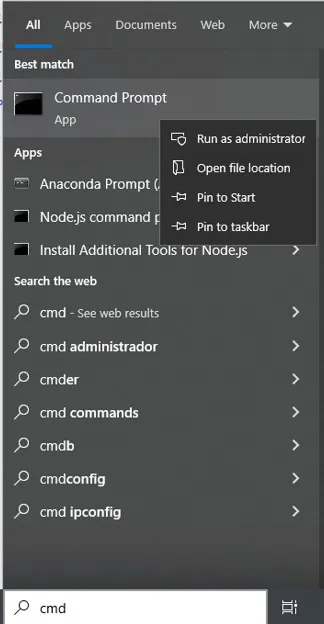
- First, we need to open a PowerShell or Command Prompt instance as administrator. To do this, search for “cmd” in the Windows menu, right-click the Command Prompt icon, and select “Run as administrator.” This will allow the command-line interface to make changes to your system.
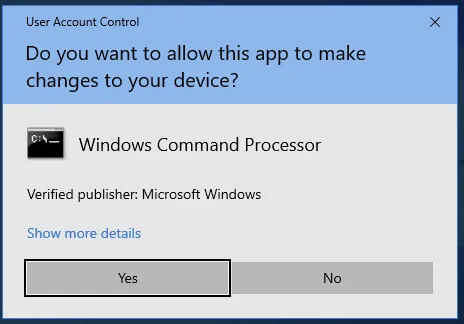
- Windows will show an alert indicating that a program wants to make changes to your system and will ask if you want to authorize it. Click “Yes” to authorize.
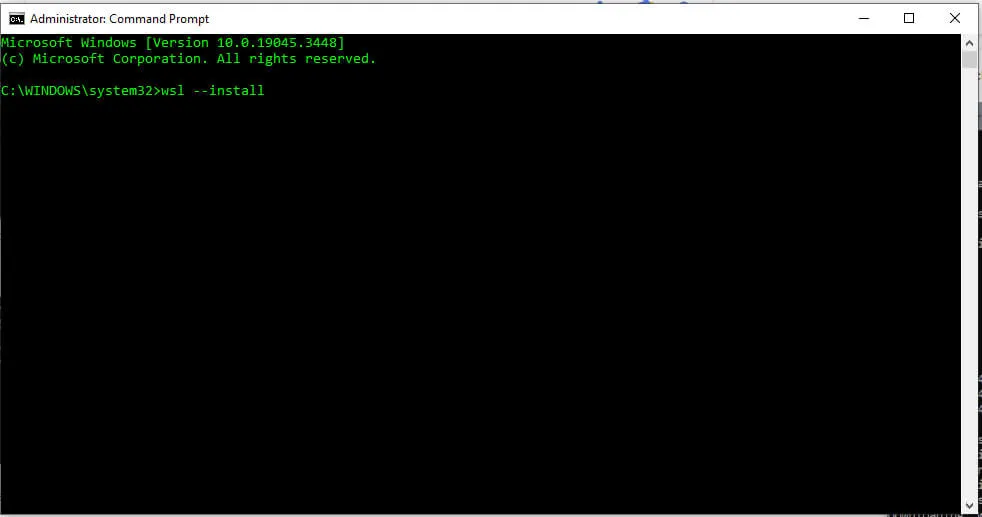
- Once authorized, run the following command in your Command Prompt: wsl –install. This will install the Linux distribution on your machine (Ubuntu by default). If you want to choose a specific one, indicate it like this: wsl –install -d distribution-name. You can find more information about available distributions and naming conventions here or with the command wsl –list –online.
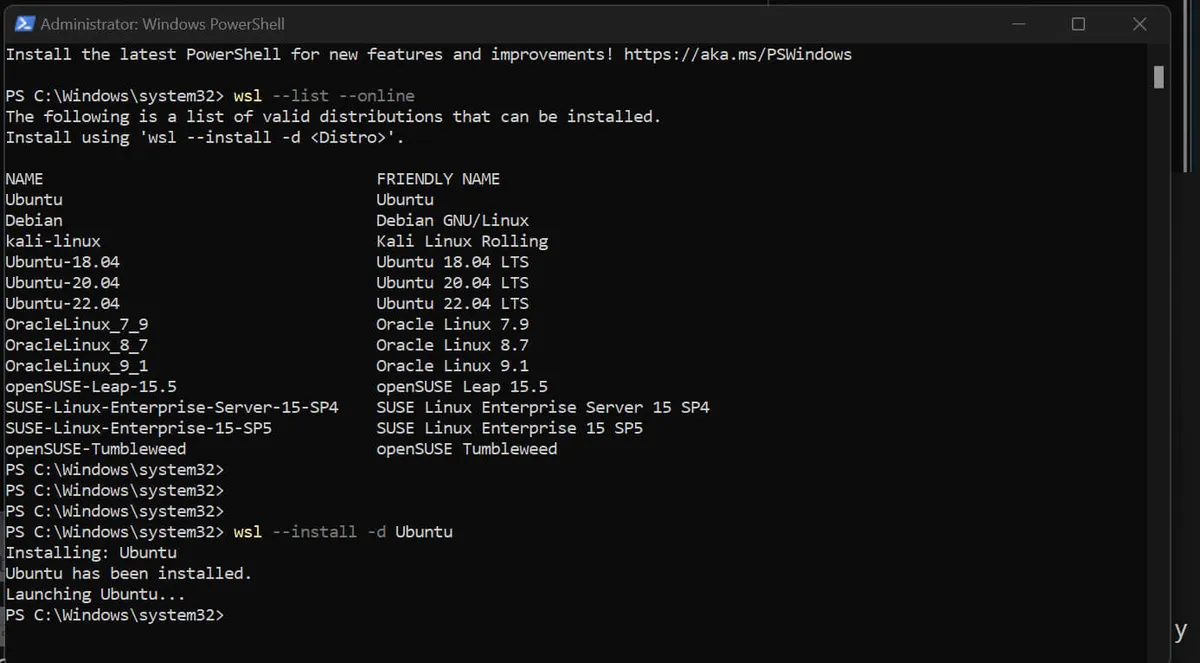
-
Once WSL and the chosen Linux distribution are installed, restart your computer to complete the installation.
-
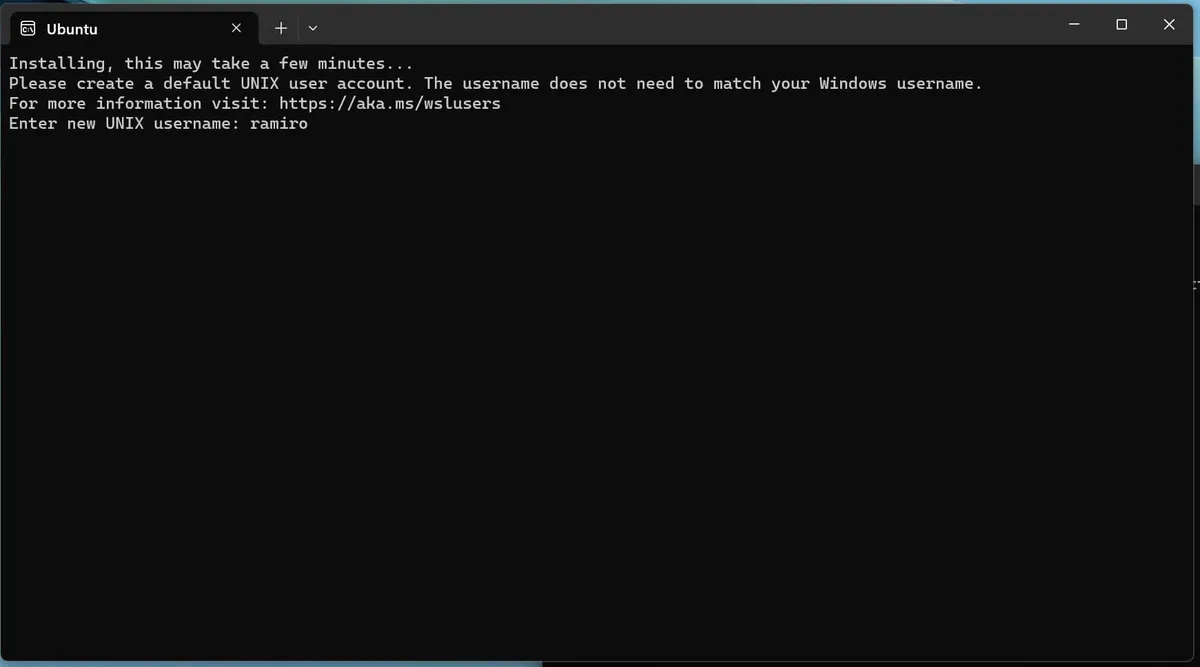
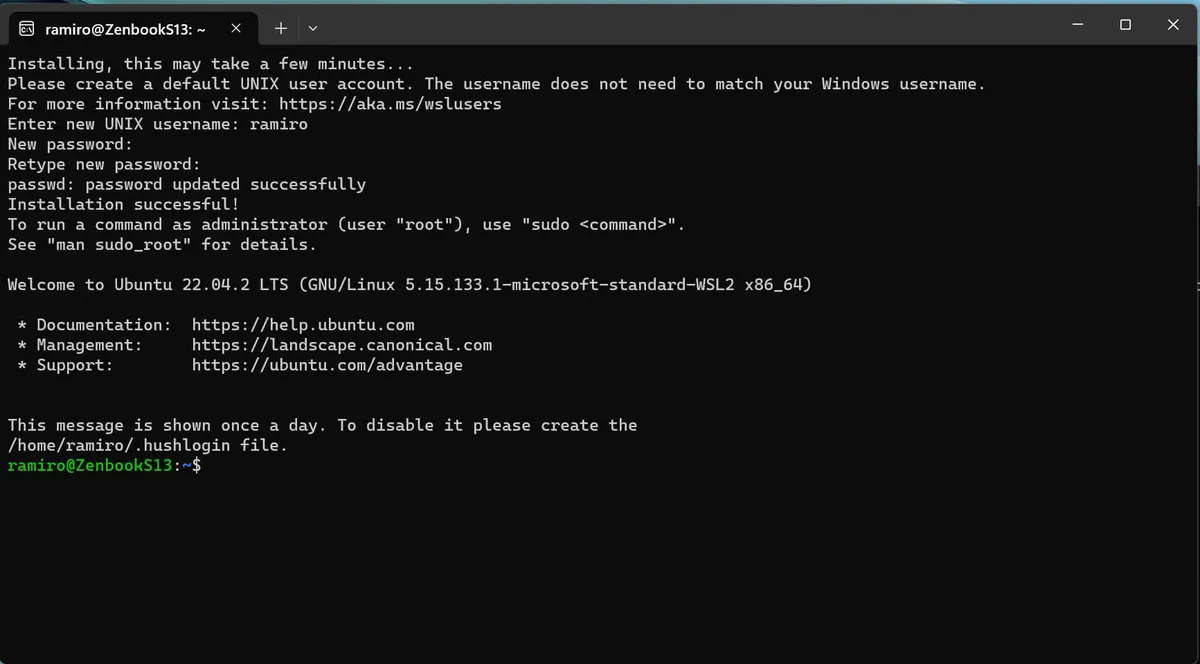
After restarting, you can proceed to create your user and password. To do this, open the Linux distribution you chose during installation. Keep in mind that:
- They are specific to each individual Linux distribution you install and have no relation to your Windows user.
- While typing your password, you won’t see it in the console. This is normal and is known as “blind typing.”
- The account created will be the distribution’s default user and will be the automatic login account.
- This account is considered an administrator and will have the ability to run sudo (superuser) commands.
- Each Linux distribution you add in WSL has its own Linux user accounts and passwords.
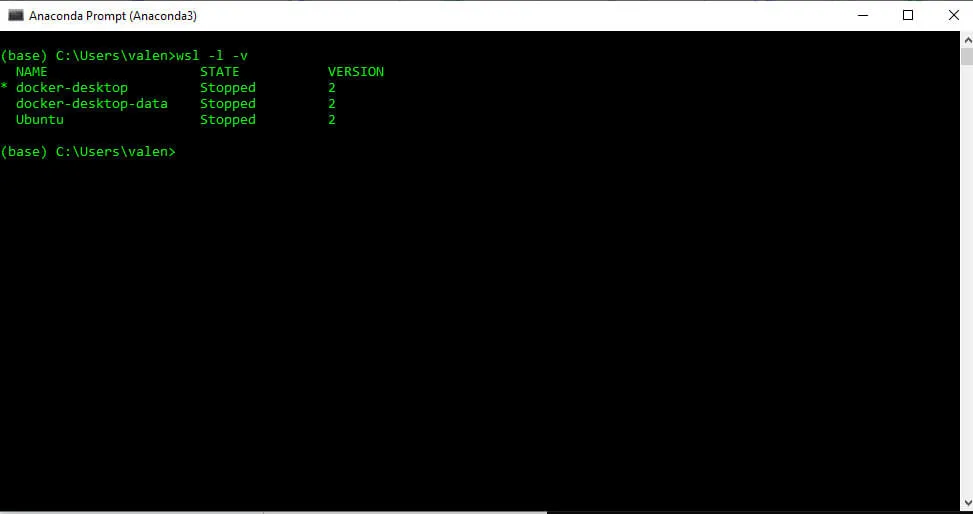
- To verify the installation was successful, enter the following command in PowerShell or Command Prompt: wsl -l -v. This will display the installed distributions.
And with that, you have WSL installed on your computer, which will let you enjoy the best of both worlds. Happy coding!


